Back to Work
User Documentation · Blender Geometry Nodes

EXPLOSIONSIM Documentation

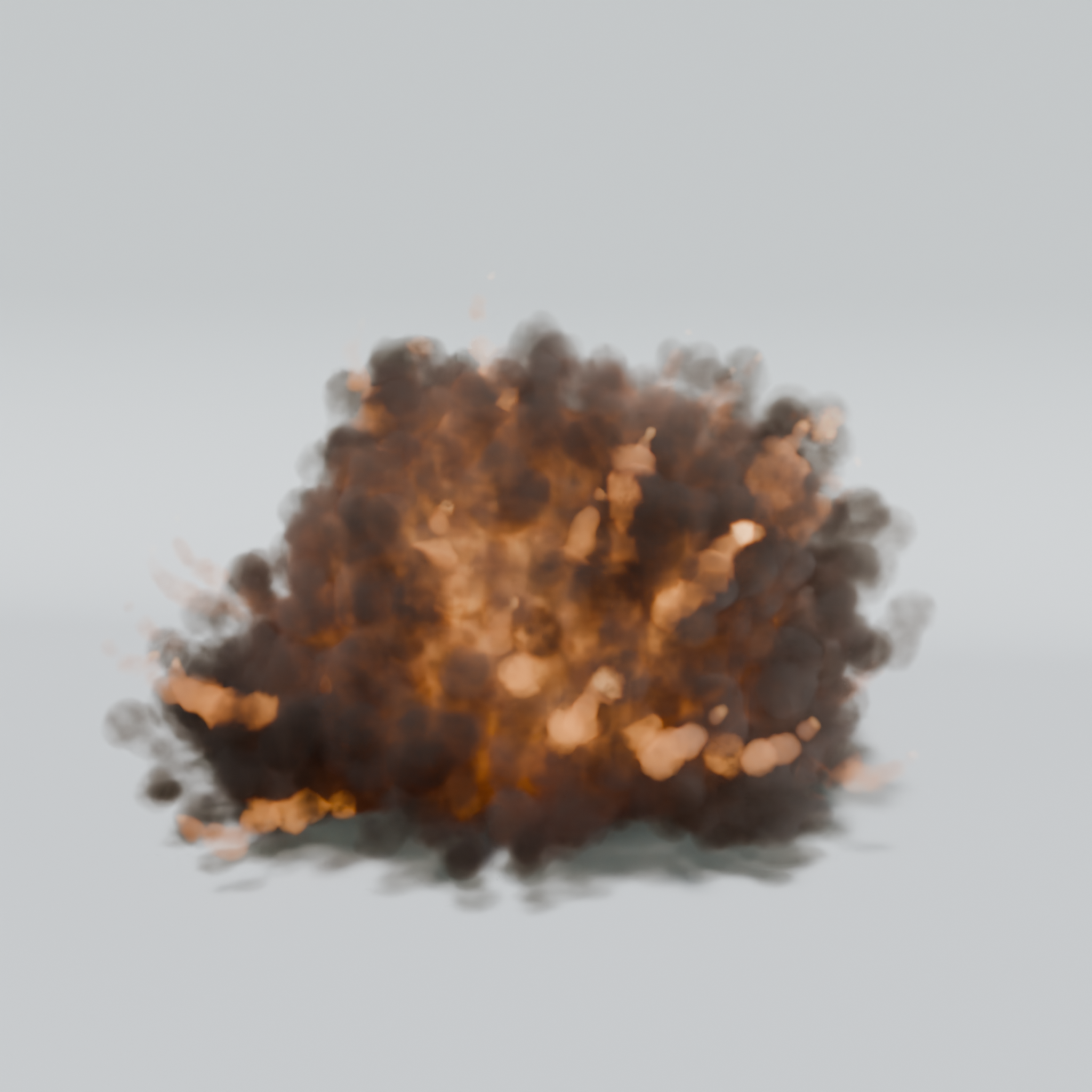
A real-time procedural explosion setup built with Geometry Nodes. Particles are simulated with blast force, drag, buoyancy, wind, turbulence, trails, debris, and ground collision, then converted into smoke, heat, and flame volume grids for rendering.

How the setup works

EXPLOSIONSIM is controlled from the Geometry Nodes modifier on the explosion object. At the start frame, the setup emits primary particles and optional spark debris. Those particles carry fuel, temperature, flame, velocity, size, and age data through the simulation.

The final renderable explosion is created by voxelizing those particles into a volume. Density controls smoke, temperature controls hot glowing regions, and flame controls the brightest burning pockets. The viewport result is intended to closely match the exported or previewed result; editor-only helpers such as grids or wireframe overlays are not part of the render.

Shape the burst

Use emission, blast strength, directionality, drag, and lobe controls to decide whether the explosion is a round fireball, a directional hit, or a broken uneven blast.

Control the smoke

Lifetime, growth, voxel size, child particles, smoothing, warp, and density noise define the visible cloud structure and dissolve timing.

Tune fire behavior

Burn rate and cooling rate drive how long the core stays hot, how quickly the outside turns dark, and how aggressively flames disappear.

Balance speed and quality

Voxel Size is the main performance dial. Particle Count multiplied by Child Count is the next major cost driver.
Quick Start

  1. Select the volumetric explosion object.
  2. Open the Geometry Nodes modifier controls in the Modifier properties.
  3. Set Start Frame to the frame where the explosion should begin.
  4. Play the timeline from the Start Frame. The burst and debris are triggered at that frame.
  5. Use Physics > Simulation Nodes to bake the simulation when you want instant scrubbing or final timing checks.
Recommended workflow

Start with a larger Voxel Size while designing the motion, then reduce it only for final previews or renders. Material Preview is usually the fastest mode for look development.

EXPLOSIONSIM real-time volumetric explosion thumbnail

Emission

Emission settings decide when particles are born, how many are created, where they start, and whether the explosion expands equally in all directions or favors one direction.

SettingWhat it controlsHow to use it
SeedRandomizes the full explosion pattern.Change this when the motion feels right but you want a different arrangement of lobes, sparks, and smoke clusters.
Particle CountThe number of primary particles emitted during the burst.Higher values create fuller smoke and more detail, but this is a major performance cost, especially with Child Count above zero.
Start FrameThe frame where emission and debris begin.Set this to sync the explosion with an impact, animation cue, or camera cut. Playback should begin at or before this frame.
Burst FramesHow many frames the main emission is spread across.Use low values for a sharp detonation. Increase it for a slower fuel burst, rolling fireball, or stylized plume.
Emit RadiusThe radius of the initial emission sphere.Small values create a tight origin. Larger values start the blast as a wider cloud, useful for fuel-air bursts or large impacts.
DirectionThe preferred blast direction.Use this with Directionality to aim the explosion, for example away from a wall or along a projectile path.
DirectionalityBlend between spherical and directional emission.0 gives a round blast. 1 pushes all motion into the chosen direction. Middle values keep some radial spread.

Burst Dynamics

These settings control the first violent expansion. If the explosion feels too soft, start here before changing smoke density or shader values.

SettingWhat it controlsHow to use it
Blast StrengthInitial particle speed in meters per second.The main violence control. Raise it for a stronger shock, wider fireball, and longer streaks. Lower it for compact combustion.
Speed DragExtra drag based on current speed.High values make the shockwave stop quickly after the initial hit. Low values let the shell travel farther.
DragBase air resistance applied to all motion.Use this to globally damp the simulation. Too much drag can make the plume feel heavy and underwater.
Tail SpeedHow much slower late-burst particles are.Lower values create a fast outer shell and slower inner core, which helps the explosion read as layered instead of uniform.
Lobe ScaleThe size of directional noise used for uneven blast lobes.Larger scale creates broad asymmetry. Smaller scale creates more frequent directional variation.
Lobe StrengthHow strongly lobe noise changes particle speed.Increase it for broken silhouettes and uneven pressure. Reduce it for a cleaner, more spherical burst.

Air Movement

Air movement settings take over after the blast. They decide whether the cloud rises, sags, drifts, curls, or keeps reshaping as it cools.

SettingWhat it controlsHow to use it
BuoyancyUpward force applied to hot particles.Increase it for a rising fireball. Reduce it if the blast should stay low to the ground.
GravityDownward pull applied more strongly to cold smoke.Use it to make cooled smoke sag, roll, and settle after the fire burns out.
UpdraftConvective lift through the plume column.Raise it to keep the center climbing after the initial burst. This is useful for mushrooming shapes.
Plume RadiusWidth of the updraft area.Small radius creates a narrow column. Larger radius lifts more of the smoke mass.
WindHorizontal drift with height shear.The top of the plume drifts faster than the lower smoke, creating a natural leaning column.
Turbulence StrengthSmall-scale chaotic motion.Use this for surface churn and active detail. Too much can make the cloud noisy or unstable.
Turbulence ScaleSize of the small turbulent features.Lower values create tighter breakup. Higher values create broader boiling shapes.
Eddy StrengthLarge, slow current force.Use it for rolling cloud motion that keeps changing after the first burst.
Eddy ScaleSize of the large current patterns.Large scale gives broad plume deformation. Small scale creates more localized currents.

Fire and Cooling

Fuel and heat are radial. The outside of the cloud burns and cools roughly three times faster than the core. This creates the intended look: a dark outer shell with hotter glowing pockets inside.

SettingWhat it controlsHow to use it
Burn RateHow quickly fuel is consumed.Higher values remove flames sooner and reveal smoke faster. Lower values keep orange fire visible for longer.
Cooling RateHow quickly heat is lost.Higher values darken the shell quickly. Lower values keep more of the volume warm, bright, and fire-lit.
Tip

If the explosion looks like smoke with no fire, lower Burn Rate or Cooling Rate before increasing shader intensity. If it looks like a solid orange ball, raise Burn Rate and add more density variation.

Smoke Lifetime

Lifetime settings define how long each puff remains visible and how it expands. Density is held through most of the particle life, then fades near the end.

SettingWhat it controlsHow to use it
LifetimeSeconds each smoke particle lives.Longer lifetime keeps the plume visible and allows more rising or drifting. Shorter lifetime is better for quick flashes and game-style effects.
Lifetime RandomPer-particle lifetime variation.Increase it for a ragged dissolve where the edge breaks apart unevenly.
Smoke FadeFade curve exponent.Higher values hold smoke longer, then fade harder near the end. Lower values fade more gradually.
Start SizeInitial puff size.Small values create fine particles. Large values create a chunkier cloud immediately.
Growth RateHow quickly puffs expand over time.Use this to make smoke bloom after the blast. Growth tapers so puffs eventually plateau instead of expanding forever.

Volume Conversion

Volume conversion turns simulated points into the final smoke and fire volume. This is where the shape becomes renderable, so these settings strongly affect both quality and performance.

SettingWhat it controlsHow to use it
Voxel SizeResolution of the generated volume grid.The main performance dial. Smaller values sharpen detail but cost much more. Moving from 0.2 to 0.3 can be roughly three times faster.
DensityMaximum smoke density cap.Higher density makes smoke darker and heavier. The cap helps preserve internal variation instead of filling the entire cloud evenly.
Smooth IterationsBlur passes on the density grid.Use more smoothing to remove hard voxel artifacts. Too much smoothing can erase cauliflower detail.
Child CountExtra child puffs generated per primary particle.Creates richer surfaces but multiplies work. This is the second biggest cost after Voxel Size.
Child ScaleSize of child puffs relative to parent particles.Lower values add fine breakup. Higher values make children read as larger smoke clumps.
Child SpreadHow far child puffs scatter from the parent.Increase it for a wider cauliflower surface. Reduce it if the cloud becomes too fuzzy.
Child Noise ScaleNoise scale used to scatter child puffs.Controls the rhythm of child placement. Adjust it when child detail looks too repetitive.
Shape WarpNoise distortion of the silhouette in meters.Adds organic bending to the outer volume. High values can over-distort the cloud.
Warp ScaleSize of the silhouette warp noise.Use large scale for broad deformation and small scale for tighter edge breakup.
Density NoisePatchy thick and thin regions inside the smoke.Increase it to reveal internal structure and prevent a solid mass.
Density Noise ScaleSize of the internal density pattern.Small scale creates fine mottling. Large scale creates broad light and dark smoke pockets.

Trails, Debris, and Ground

These controls add secondary motion: smoke streaks behind fast particles, hot spark debris, and a simple ground plane for bounce behavior.

SettingWhat it controlsHow to use it
Trail DensityChance per frame for fast young particles to deposit smoke behind them.Use it to fill the core and leave streaks behind fast movers. Set it to 0 to disable trail deposition.
DebrisEnables spark debris emitted on the Start Frame only.Turn this on for embers and hot fragments. Turn it off for pure smoke/fire simulations.
Debris CountNumber of spark particles.Higher count creates denser ember scatter but adds simulation and render cost.
Debris SpeedLaunch speed as a multiple of Blast Strength.Raise it for sparks that outrun the smoke shell. Lower it for embedded glowing fragments.
Debris SizeEmber size.Debris does not grow like smoke, so size remains a direct visual scale control.
Debris FlameBrightness and burn intensity of debris.Debris is exempt from the fast cooling used by smoke, so this keeps sparks readable longer.
Debris TrailTrail multiplier for spark particles.Increase it for thicker ember streaks. Reduce it if debris trails overpower the main smoke.
Ground CollisionEnables collision against a horizontal bounce plane.Use this when the explosion starts near a floor or terrain surface.
Ground ZHeight of the collision plane.Match this to the ground level in your scene so smoke and debris bounce from the correct height.

Performance and Troubleshooting

Performance checklist

  • Raise Voxel Size first. It has the largest impact on speed because it changes the volume grid resolution.
  • Watch Particle Count times Child Count. A high value in both settings creates many puffs before voxelization.
  • Bake before final timing review. Use Physics > Simulation Nodes so the timeline can scrub instantly.
  • Iterate in Material Preview. Save final render settings for the end of the look-development pass.
  • Estimate the end frame. Smoke is usually gone around Start Frame + Lifetime * 24 * 1.05 frames when working at 24 FPS.

Common fixes

ProblemLikely fix
The explosion is too slow or soft.Increase Blast Strength, lower Burst Frames, or reduce Drag and Speed Drag.
The smoke looks like a solid blob.Lower Density, add Density Noise, increase Child Spread, or reduce Smooth Iterations.
The flames disappear too quickly.Lower Burn Rate or Cooling Rate. Debris Flame only affects spark debris.
The plume does not rise.Increase Buoyancy or Updraft, and make sure Plume Radius is wide enough to affect the smoke mass.
The simulation is too slow to preview.Increase Voxel Size, lower Particle Count, lower Child Count, then bake the simulation for playback.