Back to Auto Router
User Documentation  ·  Blender 4.2+  ·  Shader Editor & Geometry Nodes Editor

Auto Router Documentation

Organize your node layout, route its connections, and keep your own sections easy to follow — covering installation, sorting modes, manual groups, local Group Input distribution, advanced routing settings, and troubleshooting.

What this guide covers

Auto Router is a Blender add-on for the Shader Editor and Geometry Nodes Editor that arranges node trees along their logical dependencies, routes connections cleanly around node obstacles, and maintains structured frame groups.

This user guide covers installation, running your first cleanup, choosing between Full Sort and Reroute Only, managing manual frame groups, distributing local Group Inputs, tuning advanced routing parameters, and handling large production graphs.

Install & Quick Start

Install from Blender's Extensions preferences, open the AutoRouter tab in the node editor sidebar (N), and run your first cleanup safely.

Sorting Modes

Choose Full Sort to reposition nodes and route wires together, or Reroute Only to route connections around your fixed node layout.

Manual Groups & Inputs

Control exact section membership with manual frames and split shared Group Input nodes into local copies near consumer regions.

Settings & Safety

Adjust grid step, spacing, clearance, and search budgets with automatic post-sort connection validation and state rollback protection.
Install and open the panel

  1. Download the Auto Router add-on ZIP from your purchase. Keep it as a ZIP for installation.
  2. In Blender, open Edit > Preferences > Get Extensions. Open the menu in the top-right corner, choose Install from Disk, and select the ZIP. Enable Auto Router if it is not enabled automatically.
  3. Open the Shader Editor or Geometry Nodes Editor and display the tree you want to organize.
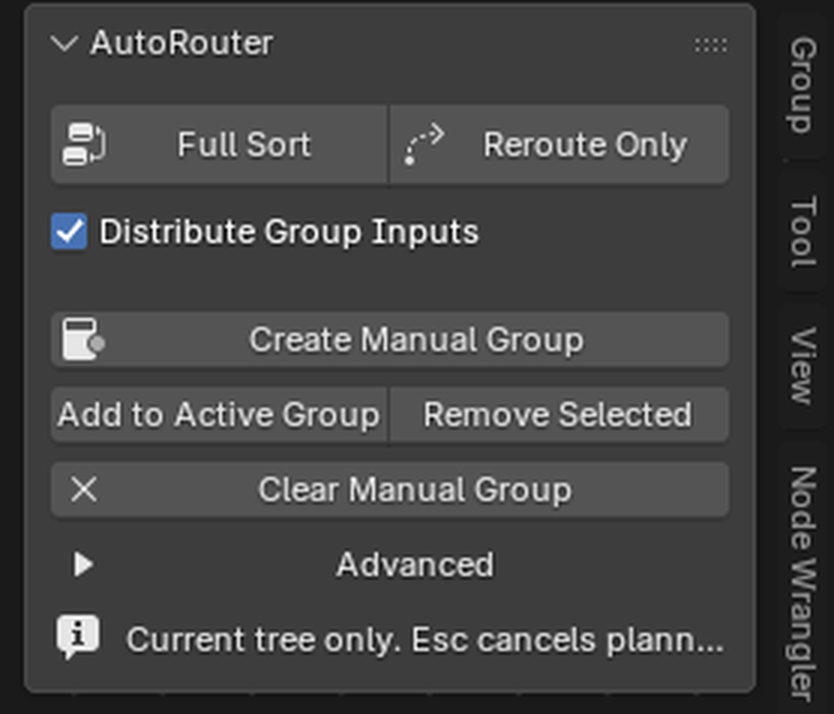
  4. With the pointer over that editor, press N to open the sidebar, then choose the AutoRouter tab.
Compatibility

Auto Router supports Blender 4.2 and later and works in both the Shader Editor and Geometry Nodes Editor.

The AutoRouter panel in the Blender Node Editor N-sidebar

Your first cleanup

  1. Save your .blend file before reorganizing an important setup.
  2. Choose Full Sort for a new layout, or Reroute Only to retain functional-node and frame positions.
  3. For Full Sort, leave Distribute Group Inputs enabled if you want local input copies considered. Start with the default Advanced settings.
  4. Run the tool and let it finish. Review the whole tree, then inspect individual frames and important connections. Read any warning Blender reports.
  5. Use Blender Undo to revert a completed run. During an interactive run, Esc cancels the operation.
Scope matters

Sorting acts on the entire currently edited tree, not only selected nodes. To organize a nested node group, enter it first. The tool does not automatically recurse through every group.

Choose a sorting mode

Mode Behavior
Full Sort Repositions nodes along their dependencies and routes their connections. Existing frame membership guides the layout. Substantial connected sections among unframed nodes may be grouped automatically.
Reroute Only Preserves functional-node and frame positions while routing connections around the existing layout. Use it when you already like the arrangement. Reroute nodes can be replaced or added.
Recorded Blender Full Sort tutorial on Shader Nodes
Full Sort (Shader Editor) — Repositions nodes and routes connections. Tutorial cursor and click pulse added in post.
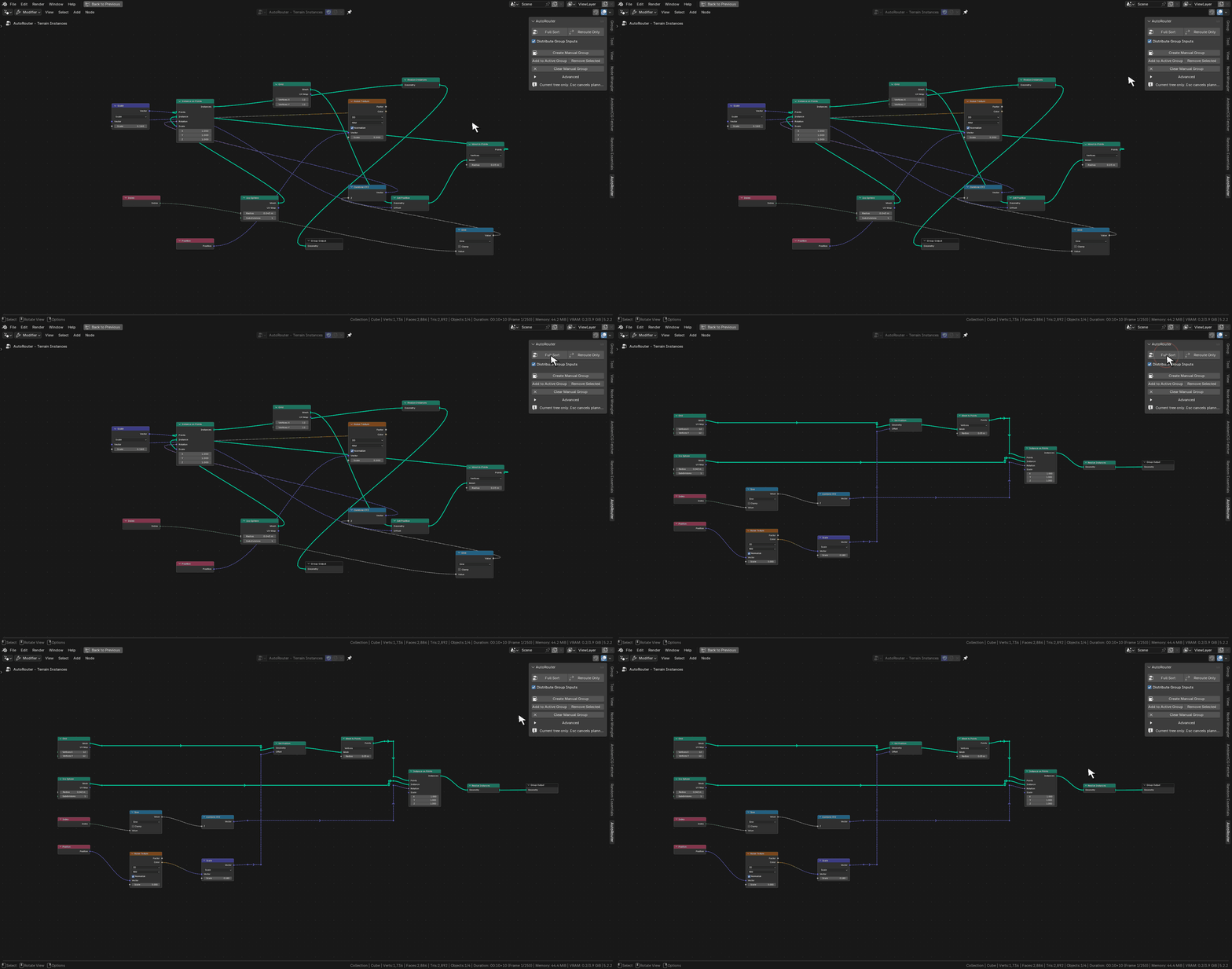
Recorded Blender Full Sort tutorial on Geometry Nodes
Full Sort (Geometry Nodes) — Organizes procedural geometry branches into structured dependency stages.
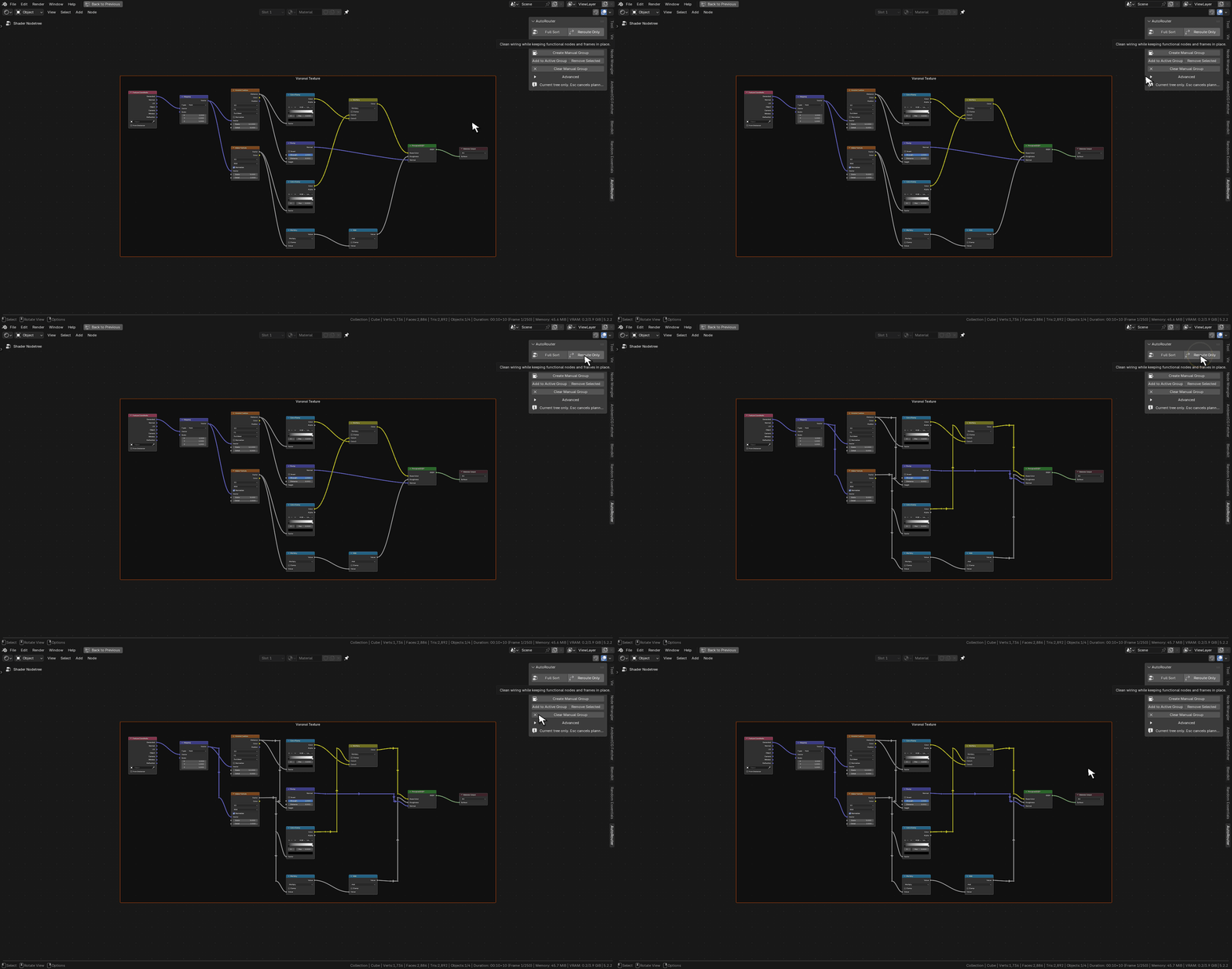
Recorded Blender Reroute Only tutorial
Reroute Only example — Functional-node positions remain unchanged while wires are routed cleanly around nodes. Tutorial pointer added in post.

Build and maintain manual groups

Manual groups are frames you explicitly create with Auto Router. Use them to mark sections whose membership you want to control. Existing hand-built frame membership also takes priority over automatic grouping.

Command Description
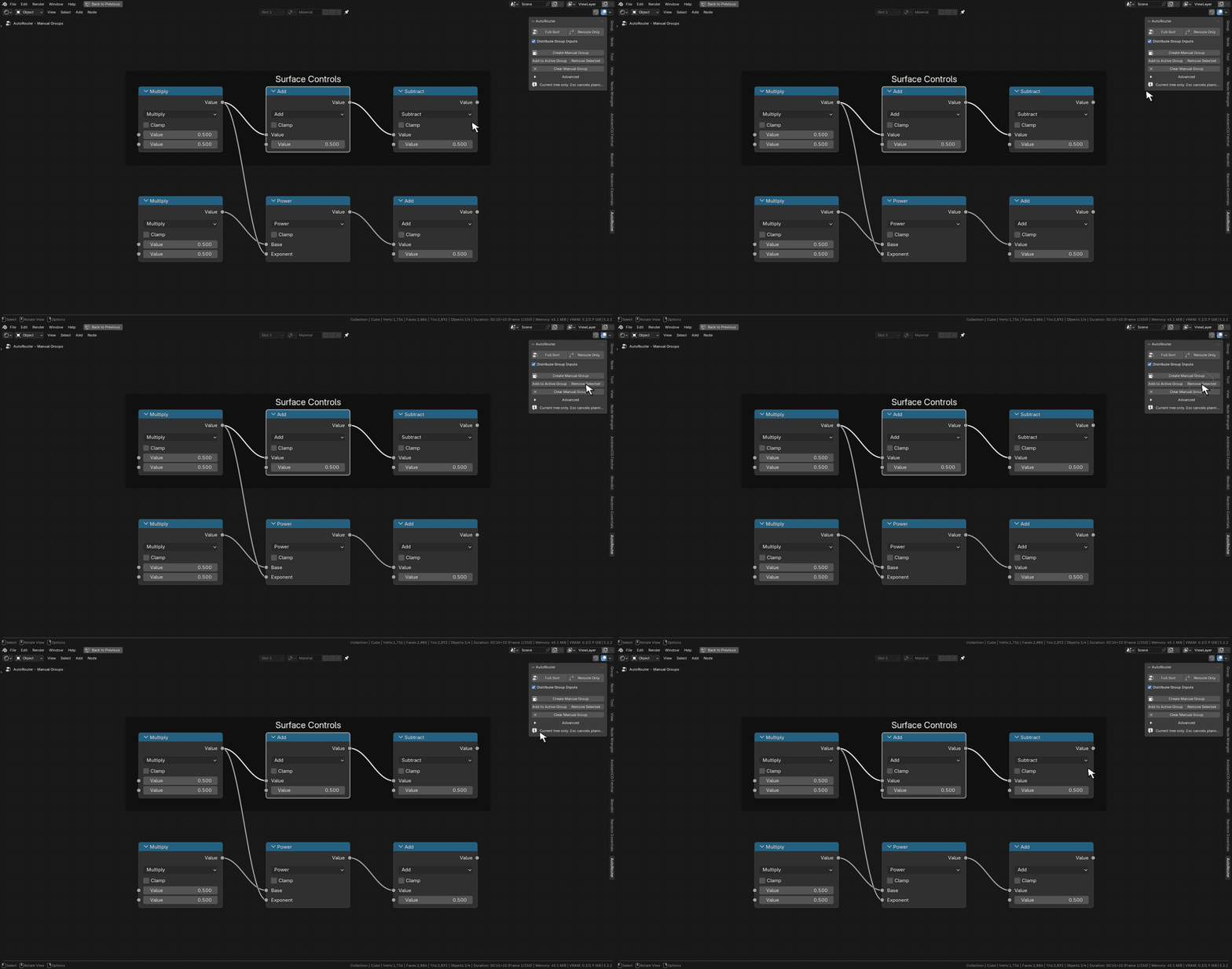
Create Manual Group Select at least two nodes or frames, click Create Manual Group, enter a Group Label, and confirm. The selected members are placed in a new manual frame without changing their absolute positions.
Add to Active Group Select the nodes you want to add. Make the destination manual frame, or a node directly inside it, active; then click Add to Active Group. In Blender the active item is normally the last selected item. This command requires an Auto Router manual frame.
Remove Selected Select members directly inside a manual group and click Remove Selected. They move out to the surrounding parent level while retaining their positions.
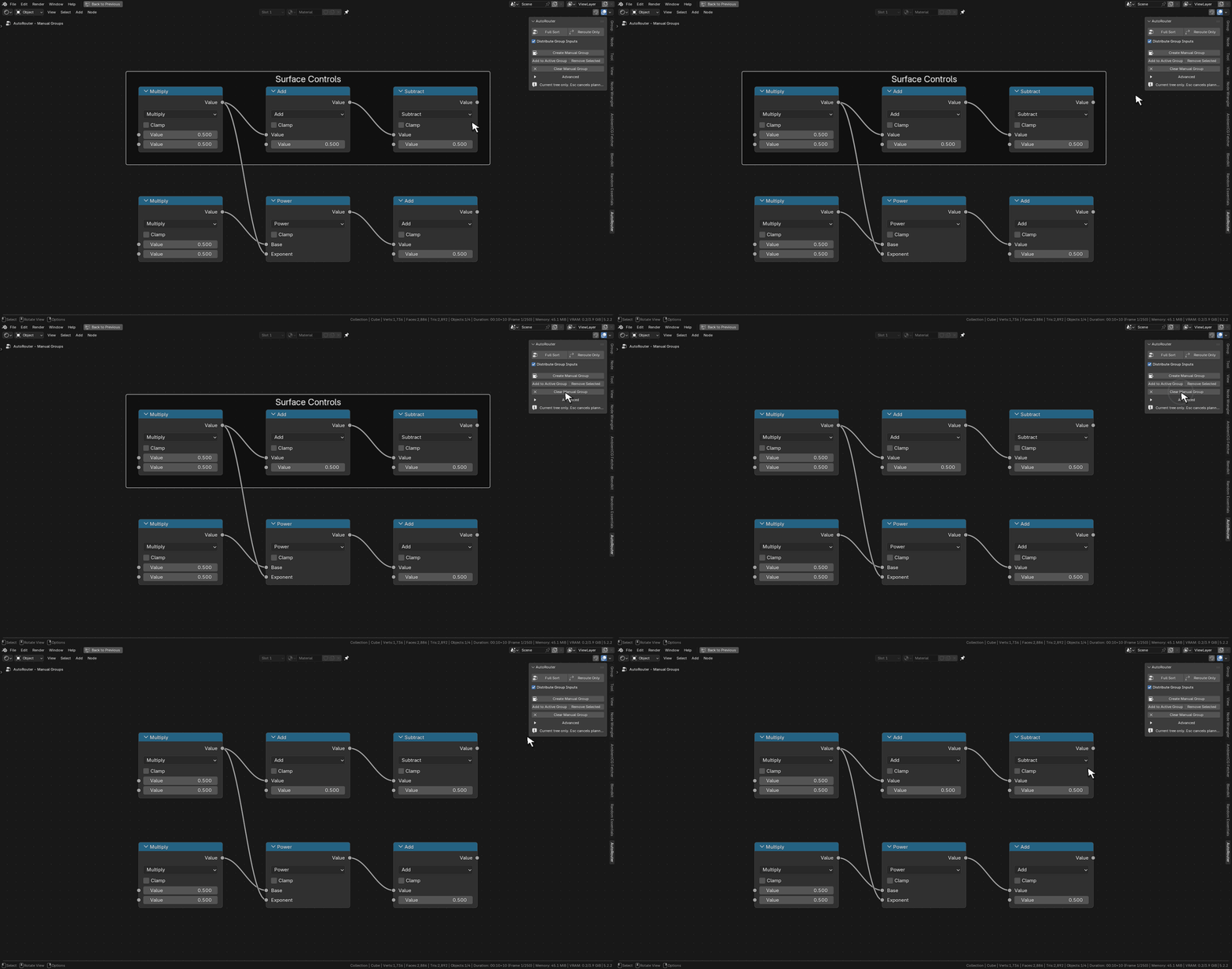
Clear Manual Group Select the manual frame, or a member directly inside it, and click Clear Manual Group. The manual frame is removed; its contents remain, with their positions preserved.
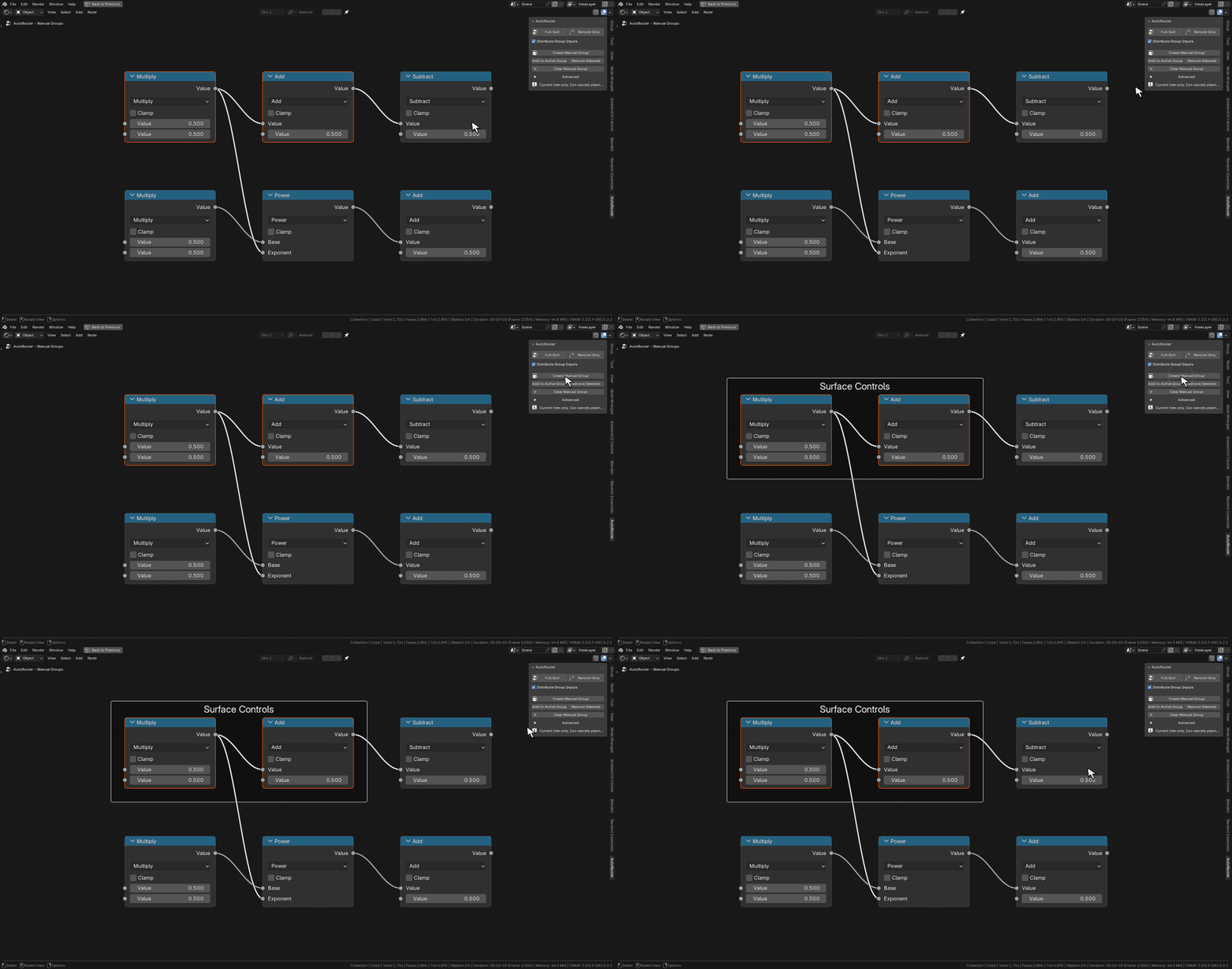
Create Manual Group demonstration
Create Manual Group — Select members first, then create the frame. The recording begins with the selection already prepared.
Add to Active Group demonstration
Add to Active Group — Select additional nodes with the target manual group active, then add them in place.
Remove Selected from manual group demonstration
Remove Selected — Detach selected members from the manual frame while keeping their layout positions.
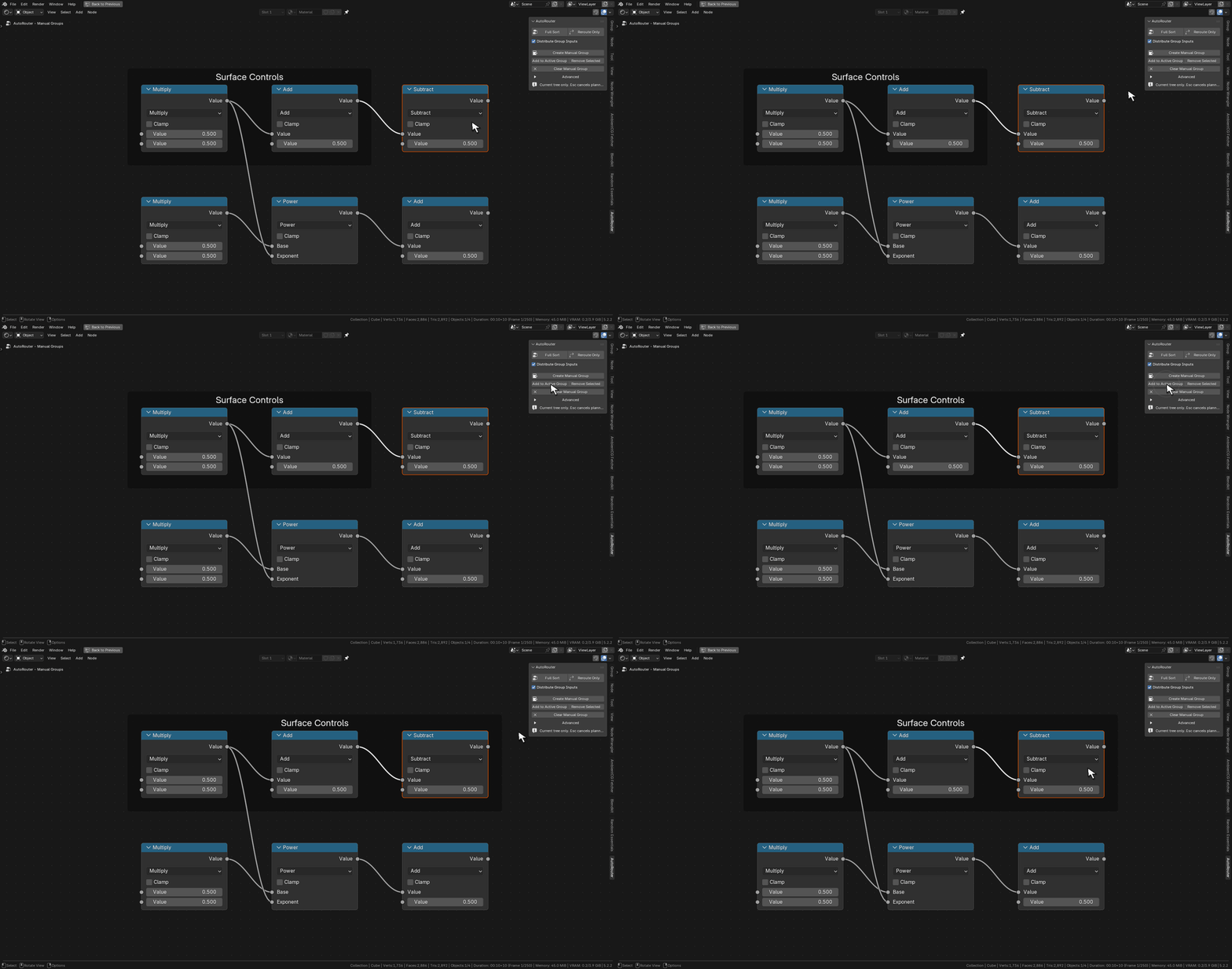
Clear Manual Group demonstration
Clear Manual Group — Remove the manual frame container while leaving all member nodes intact.

Distribute Group Inputs

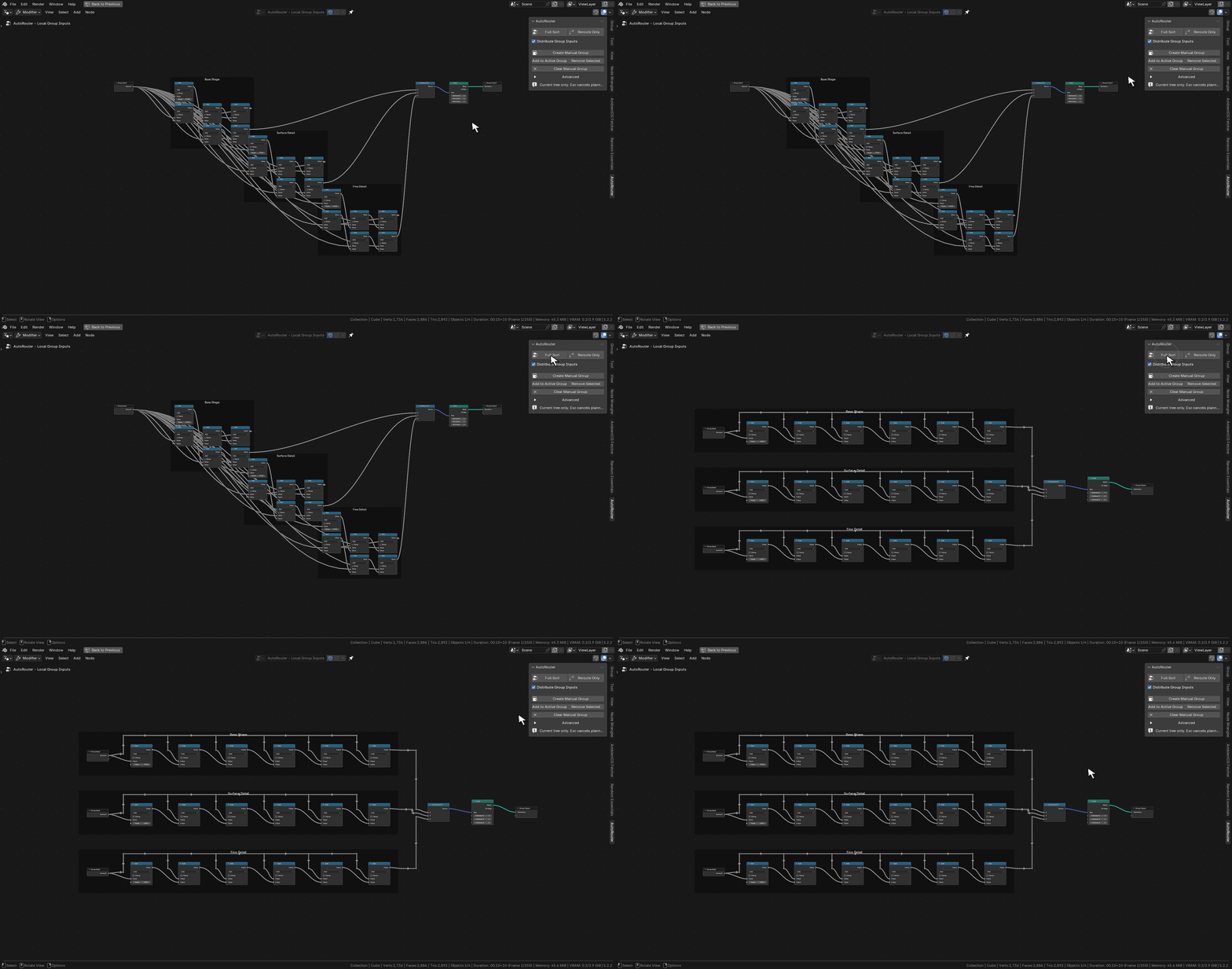
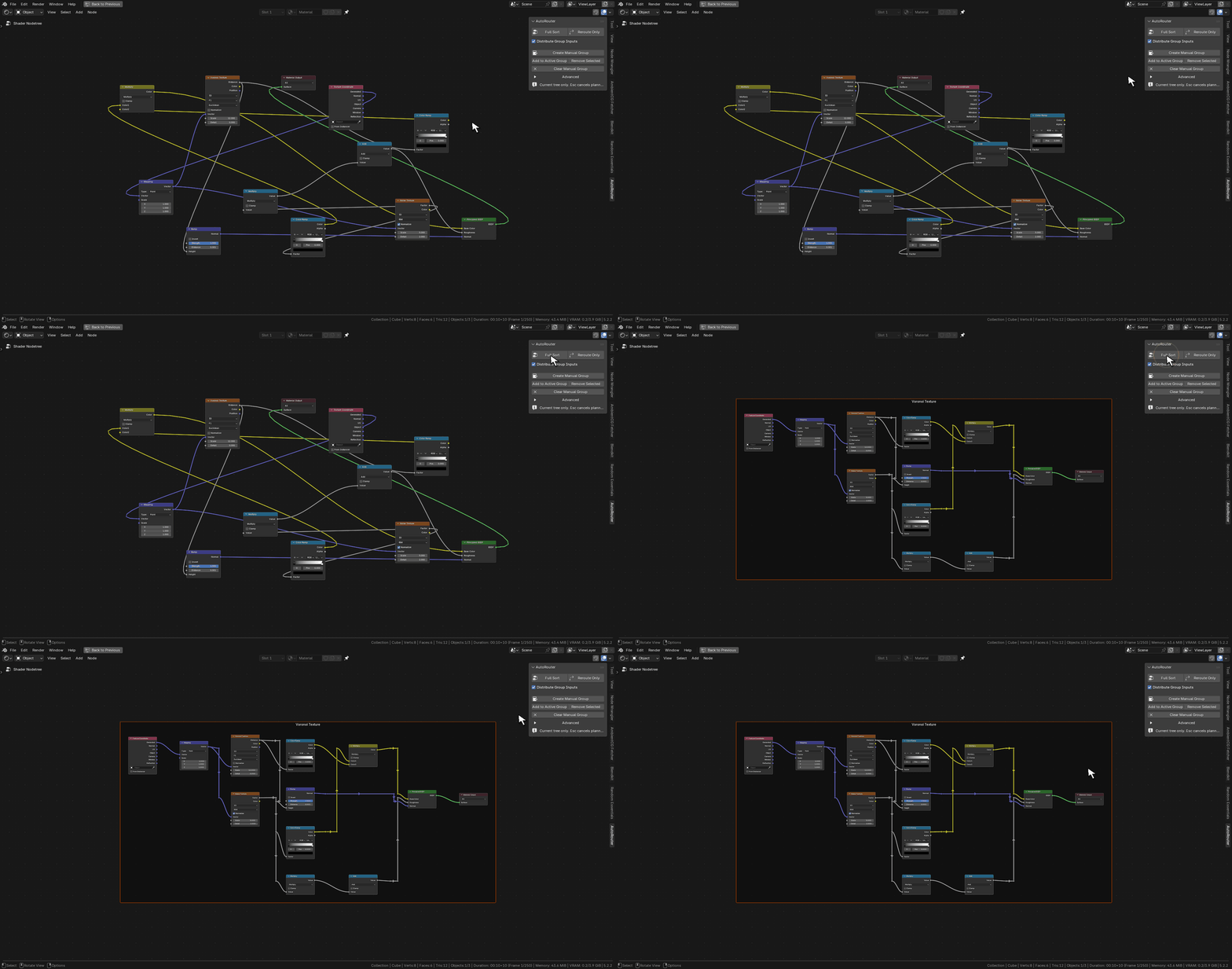
A single Group Input can create long wires when its outputs feed distant parts of a graph. Enable Distribute Group Inputs before running Full Sort to let Auto Router create a limited number of local copies for substantial consumer regions.

Copies reference the same group interface; they do not introduce independent user parameters. Relevant sockets are exposed near the regions that use them. Reroute Only does not create these input copies.

Local Group Input distribution demonstration
This demonstration changes one shared Group Input into three local copies during Full Sort.
Why an input may remain shared

Distribution is conservative. Small consumer regions, isolated outliers, or the copy limits can leave long connections in place. For an extreme tree, manually prepare additional local Group Input copies and appropriate frame membership, then run Full Sort again.

Advanced settings reference

Change a few controls at a time and compare the result. Larger spacing and larger routing budgets can make a graph easier to trace, but may increase its footprint or processing time.

Setting Description
Routing Grid Controls the routing grid. The effective routing step is at least the larger of Routing Grid and Wire Spacing; lowering one alone may not make routing finer.
Node Spacing Controls separation during Full Sort. Increase it to give the layout more room for routes. It does not reposition functional nodes in Reroute Only.
Wire Spacing Controls separation between routing lanes and contributes to the effective routing step.
Node Clearance Sets the margin routes try to leave around node obstacles. Larger clearance requires more free space.
Grouping Sensitivity Adjusts automatic grouping of unframed nodes during Full Sort. Use manual groups when exact membership matters.
Routing Passes Sets how many routing passes may be attempted. More passes may improve a difficult result and increase processing time.
Search Limit per Wire Bounds the search work for each connection. Increase it for difficult routes when you can allow more processing time.
Reroute Limit Caps the number of reroute nodes the planner may use. Higher limits allow more detailed routing but can produce larger trees.
Routing Time Limit Sets the routing budget. It is not a guaranteed wall-clock limit for planning, applying the result, drawing, or validation.
Preserve Relative Order Biases Full Sort toward the existing vertical order. It is a preference, not a position lock. Use Reroute Only to retain functional-node positions.
Rebuild Existing Reroutes Allows connected reroute chains to be replaced. Dangling and muted chains receive preservation handling. Functional-node positions remain fixed in Reroute Only.
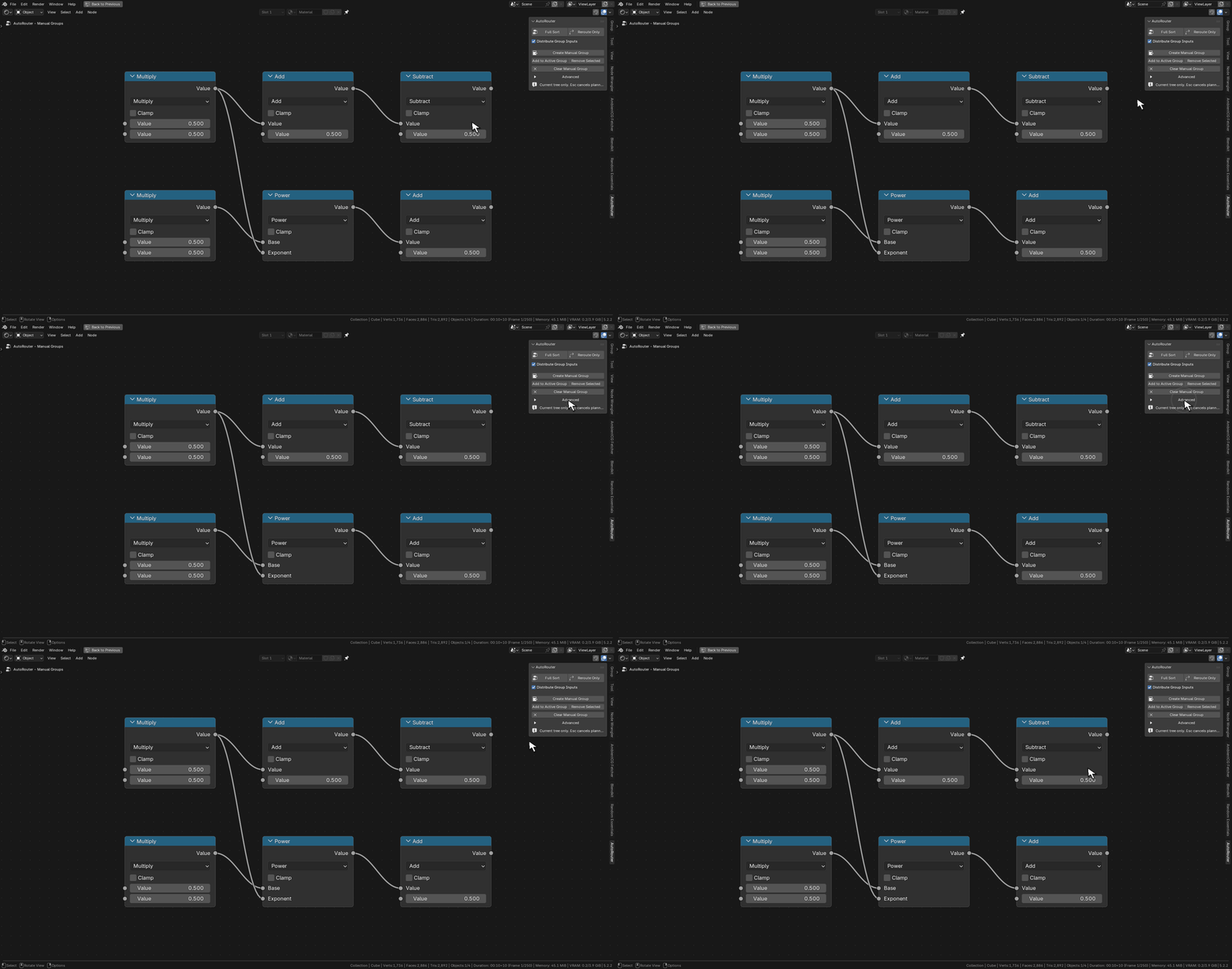
Opening the Advanced routing controls sub-panel in Auto Router
Expanding the Advanced section in the AutoRouter sidebar panel to access spacing, clearance, and routing budget parameters.

Troubleshooting and large graphs

Issue Resolution
The panel is missing Check that Auto Router is enabled, that you are in a supported node editor, and that a node tree is open. Press N with the pointer over that editor.
Add to Active Group does nothing Make an Auto Router manual frame, or one of its direct members, active. A selected item is not necessarily the active item.
Some connections kept their original wiring The router could not solve those routes within the available space or limits. Try more room with Full Sort, adjust clearance, or raise Search Limit per Wire, Routing Passes, Routing Time Limit, or Reroute Limit as appropriate. Inspect the warning; completion does not mean every connection was rerouted.
The result is too spread out Try reducing Node Spacing for Full Sort. Clearance and wire spacing also affect the space required. Keep enough room for the routes you need.
The graph still has crossings Blender draws the final wire curves, and socket positions are estimated where necessary. An optimal or crossing-free layout is not guaranteed. Adjust spacing or use manual refinement for difficult areas.
A large run takes a long time Hundreds of nodes and many connections can take several minutes. Start with defaults, avoid raising every limit at once, and use Esc to cancel an interactive run if needed.
Connection checks

Before accepting a result, Auto Router checks logical socket connections through reroutes, muted links, and multi-input ordering. If application or validation fails, the captured tree state is restored. Review important setups and save an appropriate backup; these structural checks do not replace testing a simulation or render.

The 432-node example

The full final layout shown on the product page combines Full Sort with manually prepared local Group Input copies. Its first automatic pass used four Group Inputs; the refined setup used sixteen. It demonstrates a large real workflow, not a promise of one-click input splitting or a runtime benchmark.

Support & bug reports

When asking for help, include your Blender version, the mode used, relevant settings, the exact warning, and a screenshot of the affected region.